
Recorder
A voice recorder and call recorder for keypad flip phones like the LG Exalt VN220. Press OK to record. No touch screen needed.
Feedback or ideas? Email vn220apps@mail.tab.bot
- Download the APK (button above).
- Copy it to your phone (USB cable or SD card).
- On the phone, open it in the file manager and press Install. If it asks, allow Unknown sources in Settings → Security.
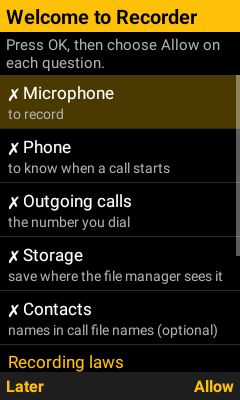
- Open Recorder, press OK and choose Allow on each question (microphone, phone, storage, contacts).
The package is com.android.cts.recorder, an approved prefix on the VN220, so it installs as-is. Don't rename or re-sign it. A phone filter (e.g. Livigent) may need to allow it first.
Updating from 1.0: install the new APK the same way, over the old one. Your recordings and settings stay.
More details
With a computer instead: adb install -r Recorder-VN220.apk (needs USB debugging on).
Features
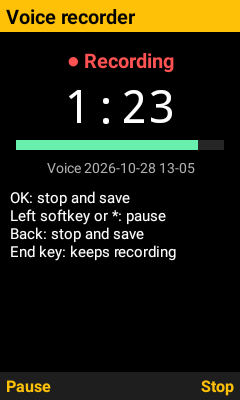
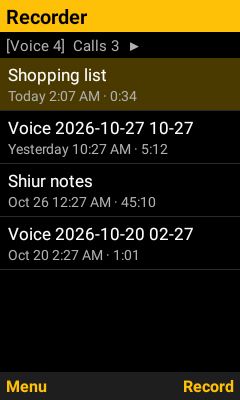
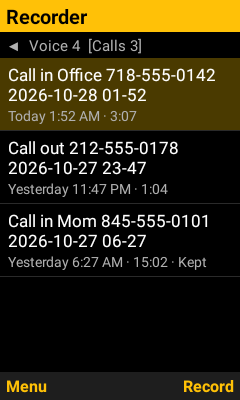
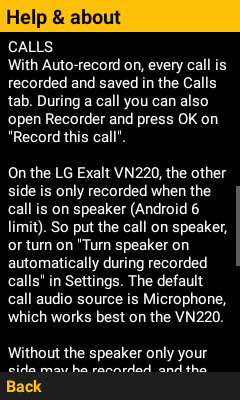
On the LG Exalt VN220, the other side is only recorded when the call is on speaker (Android 6 limit). Without the speaker, every audio source records only your side.
So put the call on speaker, or in Settings turn on Turn speaker on automatically during recorded calls. It's off unless you turn it on. The call audio source is Microphone, which works best on the VN220.
If a call was recorded with the speaker off, Recorder tells you afterwards that only your side may be in it.
Other phones may record both sides without the speaker (try Voice call or Auto in Settings). Tell us how it works on your phone: vn220apps@mail.tab.bot
Recording laws differ by place. In some places everyone on a call must agree to be recorded. You may need to tell the other person.
More screens
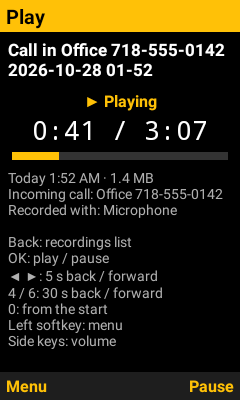
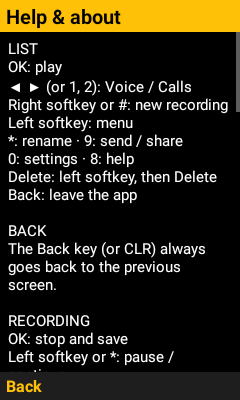
Keys
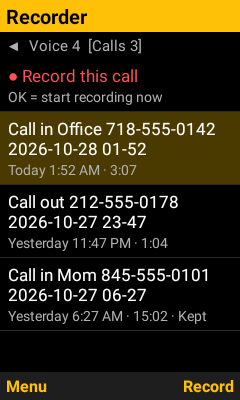
Recordings list
| ▲ ▼ | Move up and down |
| OK | Play the recording |
| ◀ ▶ (or 1, 2) | Voice tab / Calls tab |
| Right softkey or # | New voice recording |
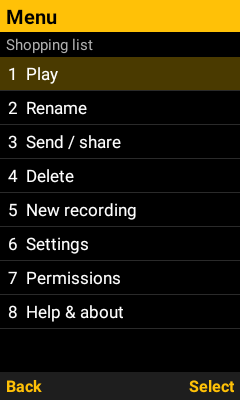
| Left softkey | Menu: play, rename, send, delete (asks first), keep, settings, help |
| * | Rename |
| Back (or CLR) | Leave the app |
| 9 | Send / share |
| 0 / 8 | Settings / Help |
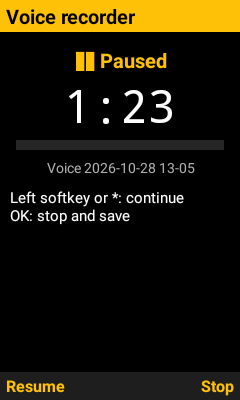
Recording
| OK | Stop and save (on a saved screen: record again) |
| Left softkey or * | Pause / continue |
| Back (or CLR) | Stop, save and go back |
| End | Leave it recording. Open Recorder and press OK on the red row to get back. |
Playing
| OK or right softkey | Play / pause |
| ◀ ▶ | 5 seconds back / forward |
| 4 / 6 | 30 seconds back / forward |
| 0 | From the start |
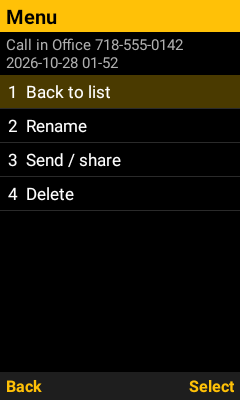
| Left softkey | Menu: back to list, rename, send, delete |
| Back (or CLR) | Back to the list |
Renaming
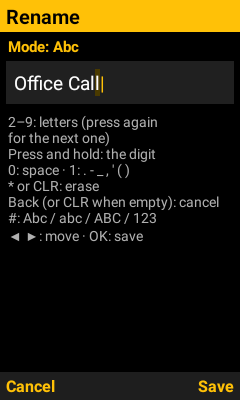
| 2 – 9 | Letters, old-phone style: 2 = A, 2 2 = B, 2 2 2 = C. Wait a second (or press ▶) for the next letter on the same key. |
| Press and hold | Types the digit |
| 0 / 1 | Space / . - _ , ' ( ) |
| * or CLR | Erase (CLR on an empty name goes back) |
| Back | Cancel and go back |
| # | Abc / abc / ABC / 123 |
| ◀ ▶ | Move the cursor |
| OK or right softkey | Save (left softkey cancels) |
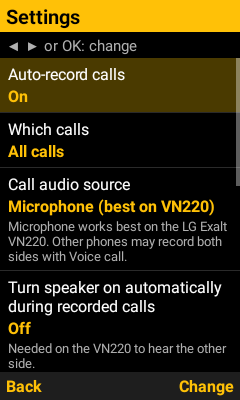
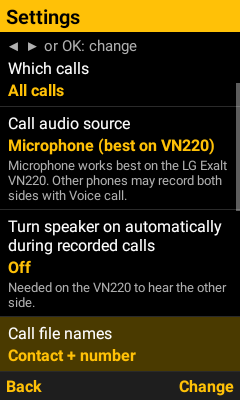
Settings (◀ ▶ or OK change a row)
| Auto-record calls | On / Off |
| Which calls | All / Incoming only / Outgoing only |
| Call audio source | Microphone (default, best on the VN220) · Auto · Voice call · Voice communication · Downlink (other side) · Uplink (your side) · Voice recognition |
| Turn speaker on automatically during recorded calls | Off unless you turn it on. Needed on the VN220 to hear the other side. |
| Call file names | Contact + number / Number only / Date only |
| Keep call recordings | Forever / 7 / 14 / 30 / 60 / 90 days (marked Keep = never deleted) |
| Voice quality | Standard 64 kbps / High 128 kbps / Small 32 kbps |
Back (or CLR) goes back to the previous screen on every screen.
Good to know
- Files are saved in Phone storage/Recorder/Voice and /Recorder/Calls as .m4a. Without the storage permission they go in the app's own folder and move over once you allow it.
- If you said no to a permission, open Recorder's menu → Permissions; it takes you to the right settings screen.
- When a call ends, a short note says it was saved. If the speaker was off, it says only your side may be recorded and points you to the speaker option.
- If a voice recording is running when a call starts, it is saved first and the call is recorded.
- Long recordings can be too big to send by text message. Copy them over USB instead.
- Want to test call recording? Call your own voicemail or a friend, then play it back and check whether you hear both sides. On the VN220, put it on speaker.
Feedback or ideas? Email vn220apps@mail.tab.bot
Version history
- 1.0.1 (Oct 28, 2026): Back (and CLR) always goes back to the previous screen, including from the player; player menu has "Back to list"; delete moved to the menu; call audio source is now Microphone by default; clearer "Turn speaker on automatically" option (off by default); after a call recorded without the speaker, a note says only your side may be recorded.
- 1.0 (Oct 28, 2026): First version: voice recorder with pause, automatic call recording, player, rename, send, delete, auto-delete for old call recordings.
Built by Tab, Oct 2026. Full app source: Recorder-source.zip.
APK SHA-256 c5d3f5725836ef46ca895d698ed93b7d7b55f85ed04ac99eca3ca59f3e9b3a6e